

Adjust PDF Size and DPI: Resize Pages & Optimize Resolution
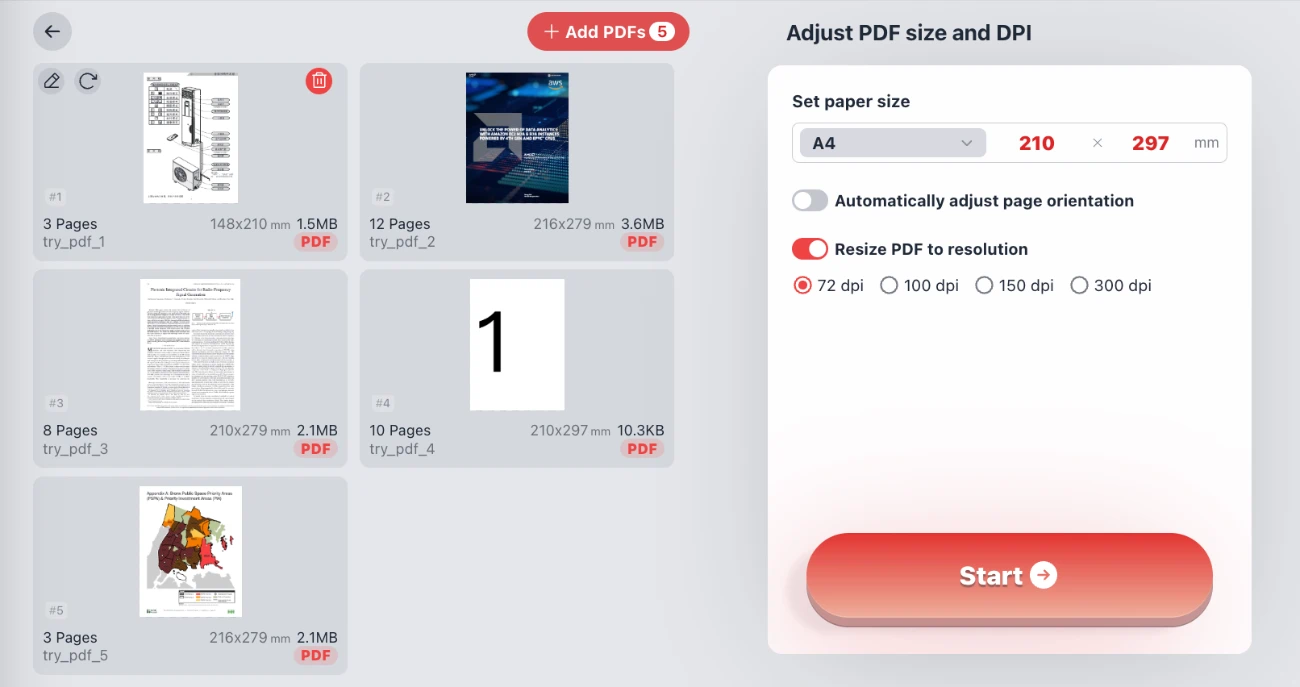
Welcome to the ultimate solution for managing your PDF document dimensions and quality. Our Adjust PDF Size and DPI tool allows you to resize PDF pages to standard formats like A4, A3, or custom dimensions, while simultaneously offering the ability to compress PDF files by modifying the DPI (Dots Per Inch). Whether you are preparing a document for high-quality printing or optimizing a file for web upload, this tool provides the flexibility you need.
Privacy Guarantee: We prioritize your security above all else. This tool operates entirely within your browser. Your files never leave your device. There is no server upload, no registration required, and no login needed. It is 100% safe, fast, and private.
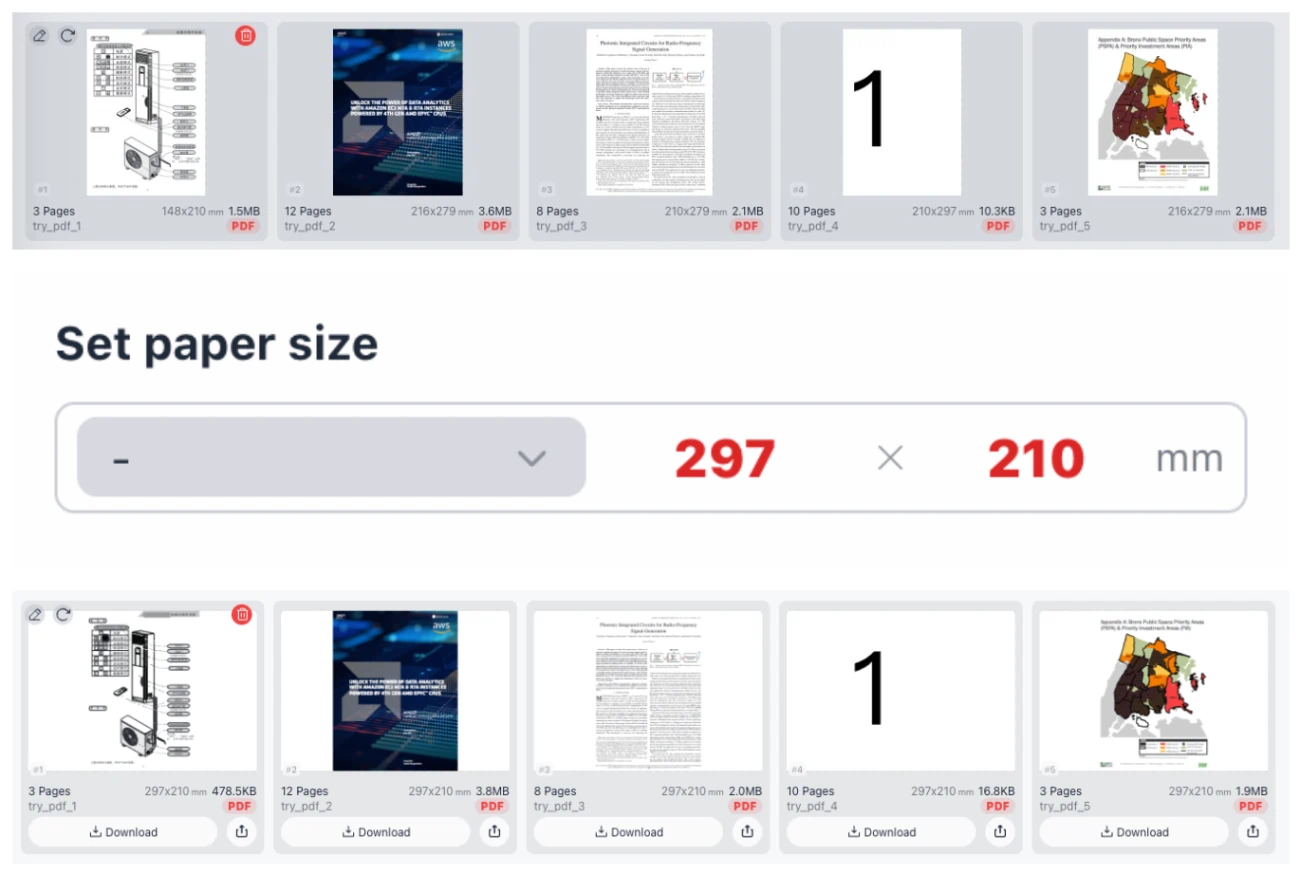
Visual representation: Converting A8 to standard A4
Key Features of the PDF Resizer
1. Comprehensive Paper Size Options
Inconsistent page sizes can cause significant issues when printing or merging documents. Our tool allows you to standardize your PDF pages instantly. The "Set paper size" dropdown menu includes a vast array of international standard (ISO) paper sizes. You can convert your documents to:
- A-Series: A0, A1, A2, A3, A4 (Standard Document), A5, A6, A7, A8, A9, A10.
- Oversized Formats: 2A0, 4A0.
- B-Series: B5 and more.
If standard sizes do not fit your needs, the interface displays the exact dimensions in millimeters (e.g., 210 x 297 mm for A4). You also have the ability to swap width and height values instantly with a single click, allowing you to toggle between Portrait and Landscape orientations effortlessly.
2. Advanced DPI & Resolution Control
File size is often dictated by the resolution of the document. High-resolution PDFs are great for printing but terrible for email attachments or web loading speeds. Our "Resize PDF to resolution" feature gives you granular control:
- 72 DPI: Ideal for screen viewing and web usage. Drastically reduces file size.
- 100 DPI - 150 DPI: A balanced choice for standard office documents and eBooks.
- 300 DPI: The industry standard for high-quality printing. Maintains crisp text and sharp images.
By selecting a lower DPI, you effectively compress the PDF file size without needing complex software.
3. Zero-Upload Security
Unlike other online tools that require you to upload your sensitive contracts or personal data to a remote server, our solution processes everything locally. The PDF resizing engine runs directly in your web browser. This means 100% privacy—your data is legally and technically secure because it never leaves your computer.
How to Resize and Compress Your PDF
Optimizing your PDF workflow is simple. Follow these steps to adjust your document's physical dimensions and digital resolution:
- Add Files: Click the "Add PDFs" button to select documents from your computer. You can batch process multiple files at once.
- Select Paper Size: Choose a standard preset (like A4) from the dropdown list. If your document is currently in Landscape but you want Portrait, simply verify the dimensions (e.g., 210 width x 297 height). Use the swap button (x) to reverse dimensions if needed.
- Choose DPI: Toggle the "Resize PDF to resolution" switch. Select your target DPI (72, 100, 150, or 300) based on your needs for quality versus file size.
- Start Processing: Click the "Start" button. The browser will process the file instantly and generate your new, optimized PDF.
Why Adjusting PDF Dimensions Matters
For Printing: Printers are loaded with specific paper sizes, usually Letter (US) or A4 (International). If you try to print a PDF with irregular dimensions, the printer may cut off content or scale it incorrectly. Resizing your PDF to match your physical paper ensures a perfect print every time.
For Emailing: A scanned document often defaults to a very high DPI (300 or 600), resulting in a massive file size that bounces back from email servers. By downscaling the resolution to 72 DPI or 150 DPI, you can reduce a 20MB file to under 5MB while keeping it legible for screen reading.
Frequently Asked Questions (FAQ)
Is this PDF resizer free to use?
Yes, this tool is completely free. You can resize and adjust the DPI of as many files as you like without any hidden costs, watermarks, or premium subscriptions.
How does the "Swap values" feature work?
In the "Set paper size" area, you will see the width and height displayed in millimeters (e.g., 210 x 297). The small "x" button between these numbers allows you to swap them. This is used to change the page orientation. For example, swapping 210x297 (Portrait) becomes 297x210 (Landscape).
Will reducing DPI make my PDF unreadable?
Not necessarily. If you choose 72 DPI, images will become pixelated if you zoom in very close, but the text usually remains readable for standard viewing. For documents containing detailed blueprints or photography, we recommend sticking to 150 DPI or 300 DPI.
Do I need to install software?
No software installation is required. This tool works in Chrome and Edge. Since it does not require file uploads, it works incredibly fast even on slow internet connections.
Can I resize multiple PDFs files at once?
Yes, the interface supports batch processing. You can add multiple PDF files to the queue, apply the same A4 sizing and DPI settings to all of them, and process them simultaneously to save time.