

PDF to Html
Convert PDF to HTML, HTML text will be accurately restored in color, position, transparency, rotation, etc., and can be copied and edited. Generate HTML and directory pages corresponding to each PDF page. Support setting HTML width and image format (jpeg, webp, png, svg).
Try these now PDFs:
Does this online conversion service protect my privacy? Are the files I import safe?
Very safe, because your files never leave your device and are not uploaded. ImagesTool uses browser technology to achieve the conversion service that previously required uploading.
Everything happens only in your browser, 100% protecting your privacy.
You can do a test Convert once, then disconnect the device from the network, and convert again and you will find that everything is normal.
PDF to HTML Converter: Secure, Accurate, and Browser-Based
Welcome to the next generation of document conversion. Our PDF to HTML tool allows you to transform static PDF documents into responsive, web-ready HTML code instantly. Unlike traditional converters that rely on cloud servers, this tool processes your files 100% locally within your browser. This means your sensitive documents never leave your device, guaranteeing absolute privacy and security. No login, no registration, and no file uploads are required.
Why Convert PDF to HTML?
PDFs are great for printing but often struggle on the web. Converting PDF to HTML unlocks the content, making it responsive, searchable, and easier to integrate into websites or content management systems (CMS). Our tool bridges the gap between fixed layouts and the flexible web.
Key Features
High-Fidelity Rendering & Accuracy
We prioritize visual fidelity. The converter analyzes the PDF structure to accurately restore text color, precise positioning, element rotation, and transparency levels. The generated HTML preserves the original look and feel of your document while making the text completely selectable, copyable, and editable within the code.
Comprehensive Output Structure
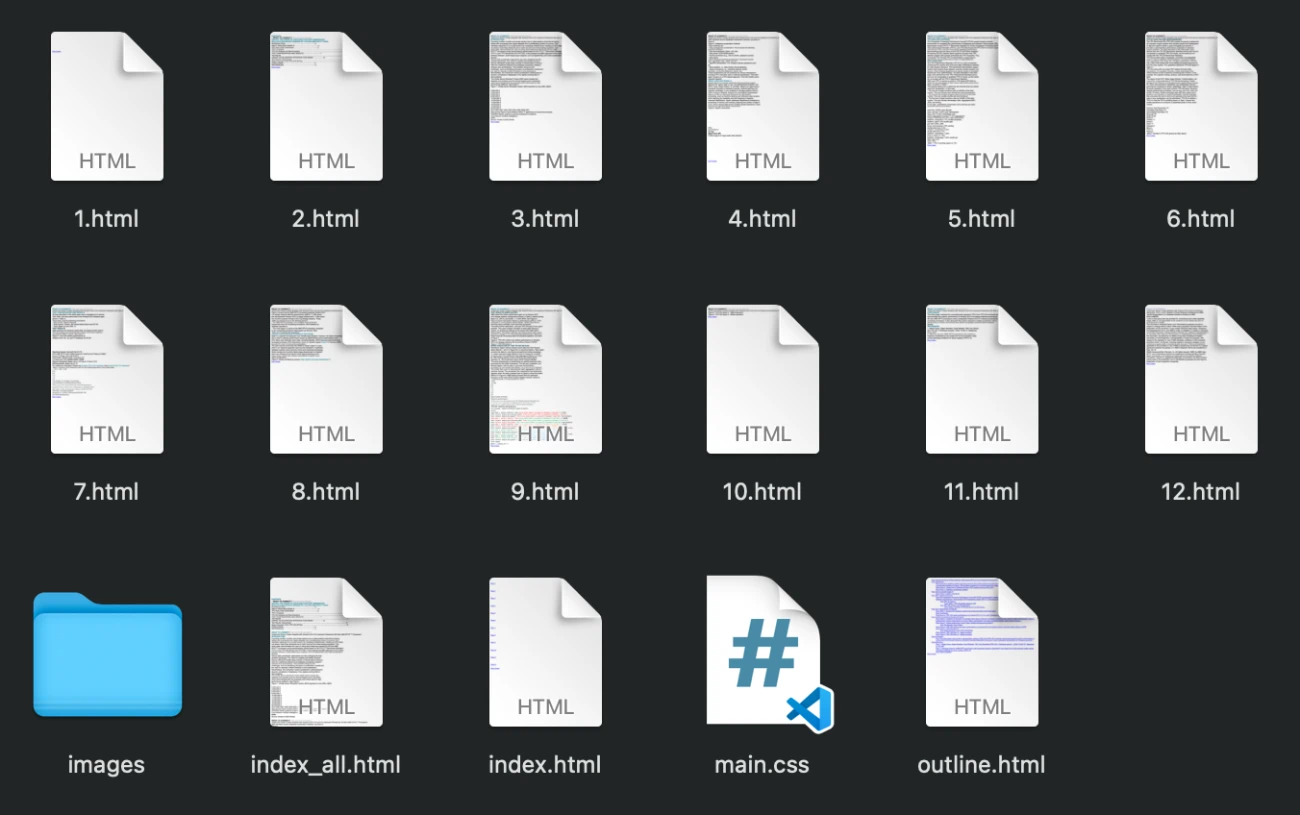
Rather than generating a single messy file, our tool organizes your content professionally. For every PDF page, a corresponding HTML file is created. The tool also generates a master index.html directory page for easy navigation and a dedicated images folder containing all extracted assets. This structured output is developer-friendly and ready for immediate deployment.
Advanced Image Control (SVG Support)
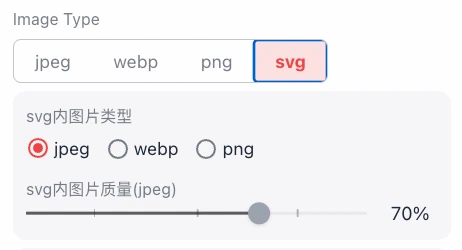
You have full control over how images within the PDF are handled. Choose between standard formats like JPEG, PNG, and WebP, or opt for SVG for resolution-independent vector graphics. When using SVG, you can even specify the format of embedded raster images inside the SVG container. We provide granular quality sliders to balance file size against visual clarity, ensuring your web pages load fast without looking pixelated.
Layout & Design Customization
Tailor the output to your specific needs before conversion starts. You can define the Page Width (e.g., 1000px) to fit your website's container, adjust the DPI multiple for high-resolution retina displays, and apply custom Padding and Border Radius to the pages. You can even toggle background colors to match your site's theme.
100% Privacy and Security
Security is our top priority. Because the conversion engine runs entirely in your web browser using WebAssembly technology, your PDF files never touch a remote server. This makes it the perfect solution for converting legal documents, financial reports, or personal data where privacy is non-negotiable.
How to Use
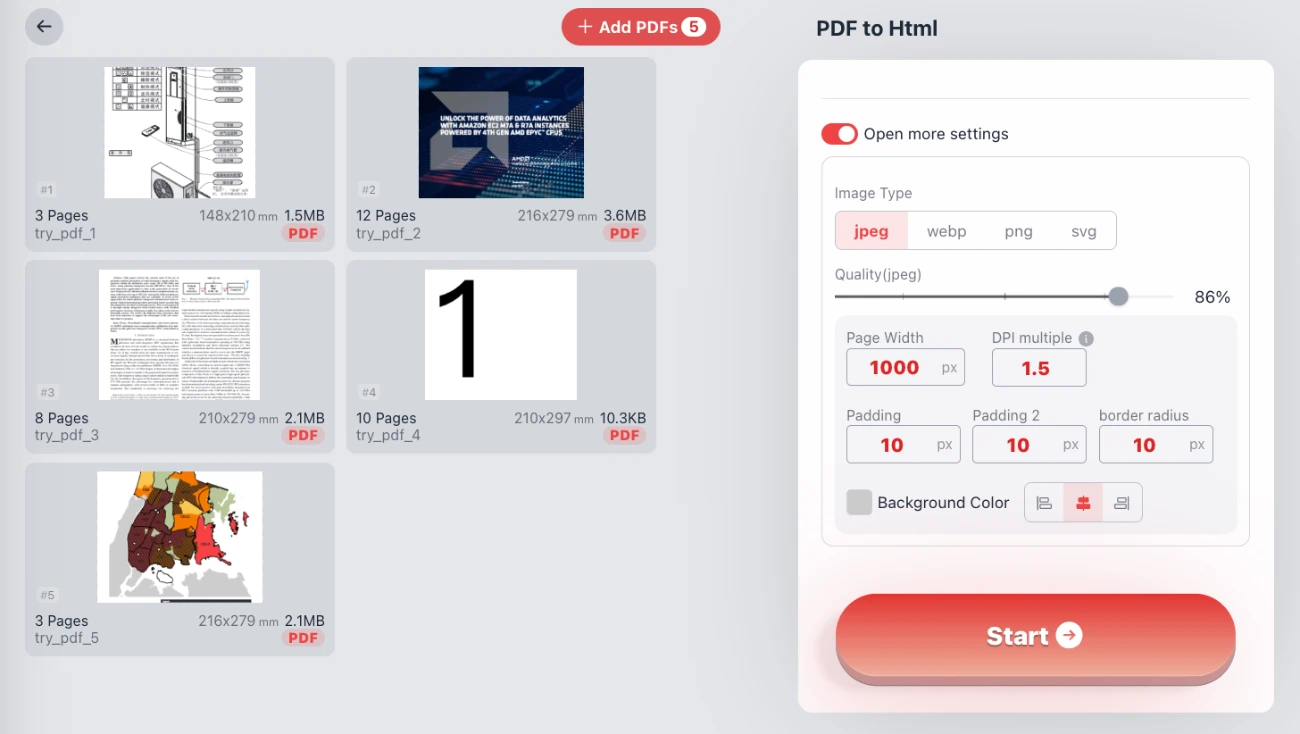
- Add Files: Click the "Add PDFs" button to select documents from your computer. You can process multiple files simultaneously.
- Configure Settings: Open the settings panel to adjust the output width, image format (JPEG/WebP/PNG/SVG), and image quality. Set your desired padding or background color.
- Convert: Click the "Start" button. The browser will process the file instantly.
- Download: Receive a ZIP file containing your HTML pages, CSS styles, and optimized images organized in a clean directory structure.
Q&A: Frequently Asked Questions
Is my data safe? Do you store my PDFs?
Yes, your data is 100% safe. We do not store, view, or upload your PDFs. The conversion process happens entirely on your device (client-side). You can even use this tool while disconnected from the internet.
Can I edit the text after conversion?
Absolutely. Unlike taking a screenshot of a PDF, this tool extracts text as real HTML elements. You can open the resulting HTML files in any text editor (like VS Code or Notepad) and modify the content, change fonts, or update the copy easily.
Does it support complex layouts with transparency?
Yes. The engine is designed to handle complex PDF features including transparency layers (alpha channels), rotated text, and overlapping graphics. It attempts to map these directly to CSS and HTML5 canvas or SVG elements for the most accurate reproduction possible.
What is the benefit of SVG output?
Selecting SVG as the image type creates vector-based graphics. This means your diagrams, logos, and charts will remain sharp and crisp regardless of how much you zoom in, making it ideal for high-density displays and modern responsive web design.
Is this tool free to use?
Yes, this PDF to HTML converter is completely free. There are no hidden costs, no watermarks added to your output, and no limits on the number of pages you can convert.