

Free Online PDF N-up Tool: Rearrange & Merge Pages for Printing
Welcome to the ultimate solution for PDF imposition and layout rearrangement. Our PDF Merge Typesetting (N-up) tool allows you to combine multiple PDF pages onto a single sheet of paper effortlessly. Whether you are trying to create a compact handout, save paper by printing slides 4-up, or create a zine with a custom grid layout, this tool provides professional-grade features directly in your browser.
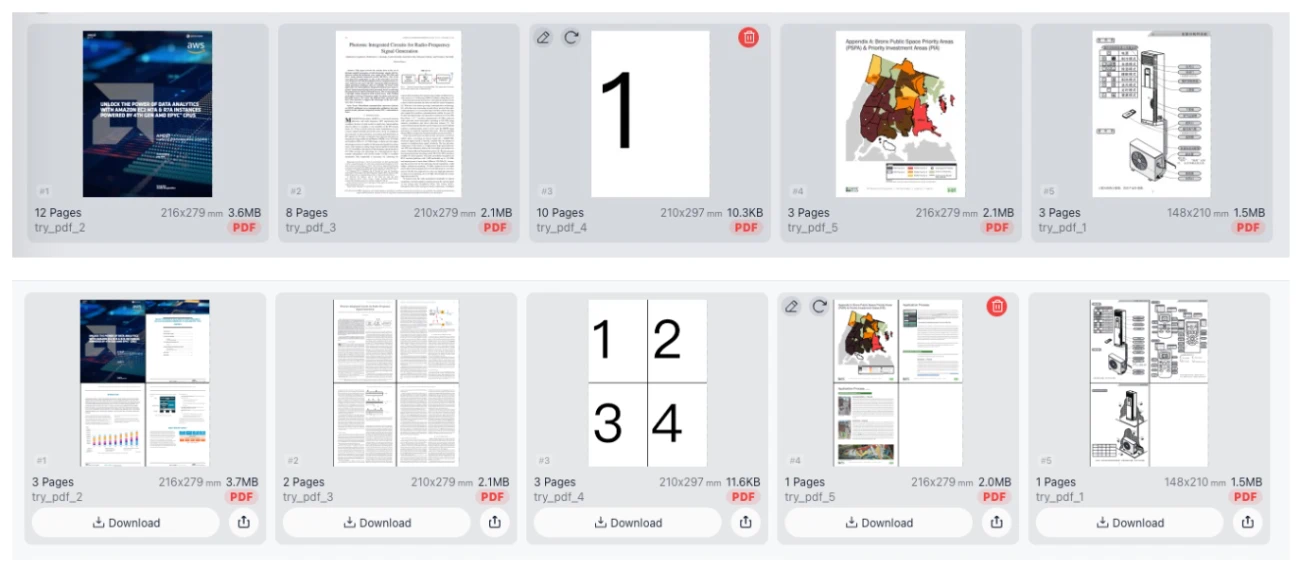
Unlike traditional server-side tools, our unique technology ensures 100% privacy and security. All processing happens locally within your web browser. Your sensitive documents never leave your device, meaning there is no upload required, no login, and no registration needed to access the full power of PDF N-up typesetting.
What is N-up Printing and Why Use It?
"N-up" is a printing term that refers to the strategy of placing multiple pages of a document onto a single physical sheet of paper. The "N" stands for the number of pages. For example, "2-up" puts two pages side-by-side, while "4-up" places four pages in a grid.
Using our PDF Layout Rearranger helps you:
- Reduce Paper Waste: Shrink presentation slides or draft documents to fit 4, 6, or even 16 pages per sheet.
- Create Booklets and Flyers: Arrange pages specifically for folding and binding.
- Optimize Readability: Use custom padding and margins to ensure content doesn't get cut off during printing.
- Archive Efficiently: Combine scattered one-page PDFs into a single, compact file for easier storage.
Key Features of the PDF Typesetting Tool
1. Extensive N-Up Presets
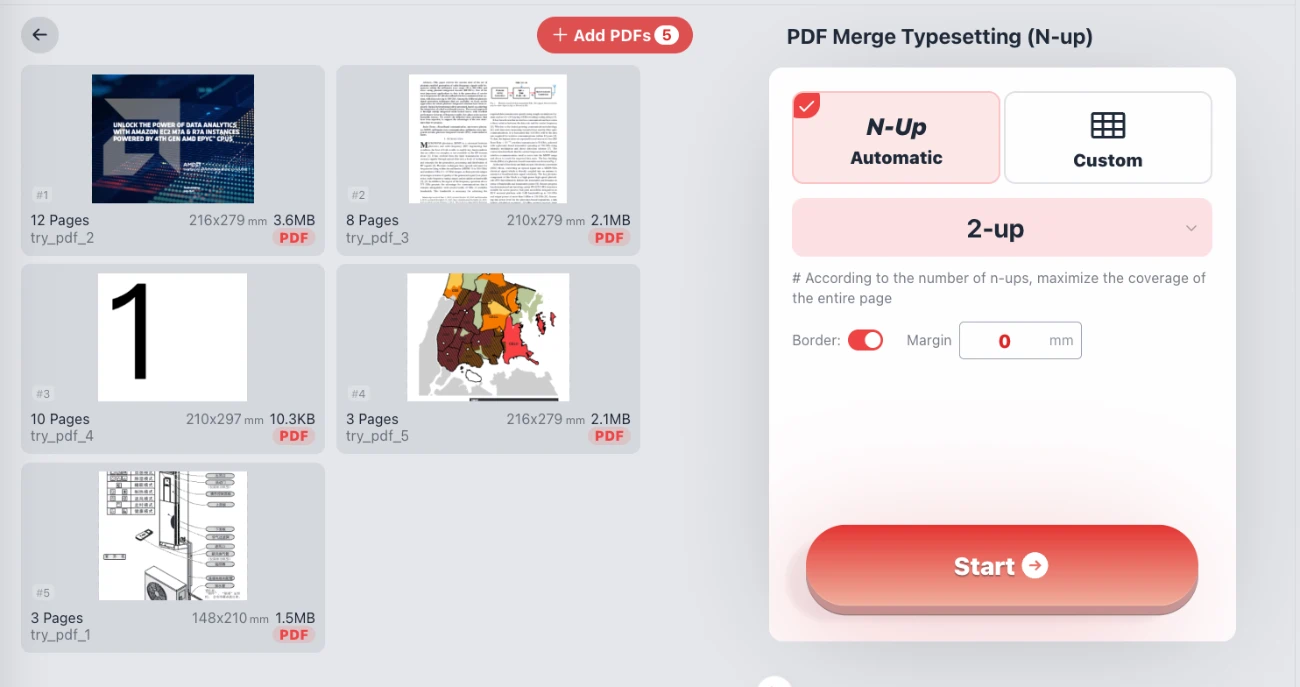
We offer a wide range of one-click presets to speed up your workflow. You can instantly convert your document layout to: 2-up, 3-up, 4-up, 6-up, 8-up, 9-up, 12-up, and 16-up. These presets automatically calculate the best fit for your chosen paper size.
2. Fully Custom Grid Layouts (Rows & Columns)
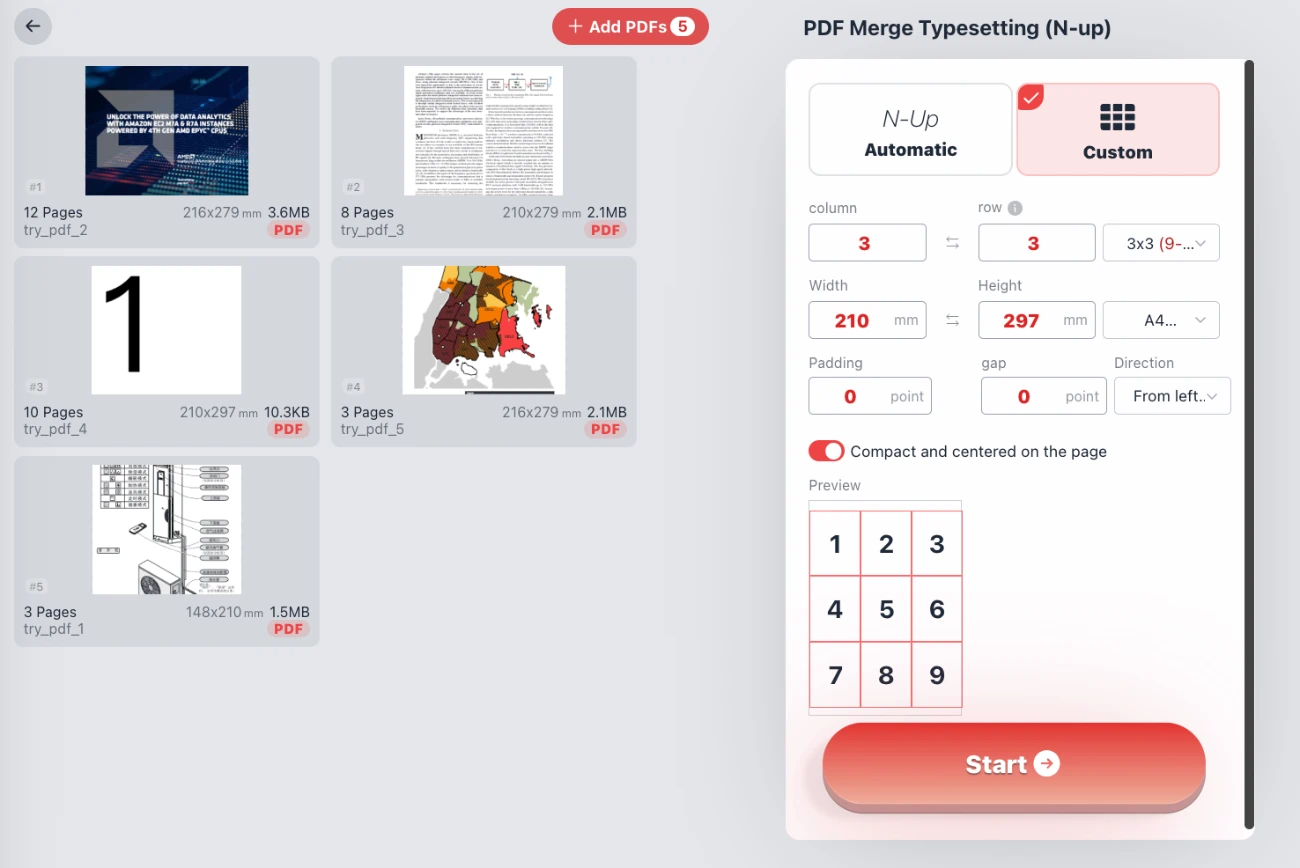
Need a specific layout that standard presets don't cover? Switch to Custom Mode. Here, you can manually define the number of rows and columns (e.g., a 3x3 grid for 9 pages per sheet, or a 1x3 strip). This flexibility makes it ideal for printing tickets, labels, or flashcards.
3. Advanced Page Sizing & Formatting
Control the final output with precision. You are not limited to the original document size.
- Standard Paper Sizes: Select from A0, A1, A2, A3, A4, A5, A6, Letter, Legal, Tabloid, and more.
- Custom Dimensions: Input exact width and height in millimeters for specialized printing needs.
- Margins & Padding: Adjust the gap between pages and the border around the edge of the sheet. You can set these to 0 for a seamless look or increase them for cutting guides.
- Orientation Control: Define the fill direction (e.g., from left to right, then down) to ensure the logical flow of your document is maintained.
4. Client-Side Security (No Uploads)
This is a serverless PDF tool. When you add files, our script processes them locally using your computer's resources. This guarantees that your financial data, legal contracts, or personal photos never cross the internet. It is the safest way to manipulate PDFs online.
How to Arrange PDF Pages (Step-by-Step)
- Add Files: Click the "Add PDFs" button to select the documents you wish to process. You can see the page count and dimensions for every file added.
- Choose Mode:
- Select Automatic for standard N-up configurations (like 2-up or 4-up).
- Select Custom to define specific rows and columns (e.g., 2 rows x 4 columns).
- Configure Settings: Choose your target paper size (e.g., A4). Toggle "Compact and centered" to optimize space usage. Adjust padding or margins if necessary.
- Preview: Watch the real-time grid preview to see how your pages will be numbered and arranged (1, 2, 3, etc.).
- Start Processing: Click "Start". The browser will render the new PDF layout instantly.
- Download: Save your newly formatted PDF directly to your device.
Visualizing 4-up Layout: Merging 4 source pages into a single output sheet.
Frequently Asked Questions (QA)
Q: Is this PDF N-up tool really free?
Yes, this tool is completely free to use. There are no hidden paywalls, no watermarks added to your documents, and no limitations on the number of times you can use the service.
Q: My files are very large. Will this tool crash?
Because the tool uses your device's processing power (client-side processing), performance depends on your computer's RAM and CPU. However, it is generally much faster than uploading large files to a server. It handles standard documents efficiently without network lag.
Q: Can I mix different page sizes?
Yes. You can input PDFs with varying dimensions. The tool will resize and arrange them according to the target page size (e.g., A4) and the N-up grid you selected, ensuring a uniform output.
Q: What does "Compact and centered" do?
This feature analyzes the content and the grid. If the scaled pages result in extra white space on the sheet, this setting centers the grid on the page for a balanced, professional look, rather than aligning it strictly to the top-left corner.
Q: Do I need to install Adobe Acrobat or other software?
No. This tool runs entirely in your web browser (Chrome, Firefox, Edge, Safari, etc.). You do not need to install heavy desktop software to achieve professional typesetting results.